How to Get ScratchJr on PC

ScratchJr is often the first coding app a child touches, and it quietly teaches core programming logic. Many parents search for scratch jr download options because tablets are not always practical for daily use. Schools also prefer larger screens, keyboards, and mouse input for group instruction. That demand pushes ScratchJr into PC environments, even though the app itself was built for mobile platforms.

What ScratchJr Is and Why It Exists
PC

ScratchJr is a visual coding application created for children aged five to seven. It removes syntax and replaces it with block-based commands that snap together like puzzle pieces. Kids control characters using motion, sound, triggers, and loops without typing a single line. This approach lowers friction and lets logic become the focus instead of spelling errors. Behind the bright colors sits a real programming model. Each block represents an action, a condition, or a sequence. Children start thinking in steps, cause and effect, and repetition without realizing it. That mental habit is the same one used later in Python or JavaScript.

How ScratchJr Teaches Coding Concepts Early

ScratchJr introduces sequencing by forcing actions to run left to right. A character moves only after blocks are placed in the correct order. This mirrors how real code executes line by line. Kids see instant feedback, which tightens the connection between logic and outcome. The app also introduces events through start blocks and interaction triggers. Characters respond to taps, messages, or collisions on screen. This quietly explains how software reacts to user input. It feels like play, but the structure underneath is pure programming logic.

Technical Features That Make ScratchJr Effective
IT coding app

ScratchJr runs on a simplified engine that avoids distractions. There are no ads, no pop-ups, and no unnecessary menus. The interface prioritizes drag actions and large icons to match small hands. Performance stays smooth even on low-end hardware. Projects are saved locally, which teaches file awareness at an early age. Kids open, edit, and revise their creations repeatedly. That habit supports iteration, a core engineering mindset. Over time, children begin testing ideas instead of guessing outcomes.

Limitations of ScratchJr on Desktop Systems

ScratchJr does not offer a native Windows or macOS version. The app was built strictly for the Android and iOS ecosystems. That creates friction for classrooms using desktop computers. Touch-only design also complicates mouse-based interaction. This limitation does not block usage entirely. Android emulation bridges the gap effectively. With the right emulator, ScratchJr behaves almost exactly as it does on a tablet. Screen size actually improves visibility for shared instruction.

How to Run ScratchJr on PC Using LD Player
LD Player is an Android emulator that allows mobile apps to operate on a computer. After installing the emulator, users can access the Play Store inside it. ScratchJr installs like any standard Android app within that environment. Setup takes minutes, not hours. Once running, the app maps touch gestures to mouse clicks. Dragging blocks feels natural after a short adjustment period. Performance remains stable on most modern systems. This method keeps ScratchJr accessible without changing its core design or logic.

ScratchJr proves that serious tech education can start early. It teaches thinking patterns, not memorization. Running it on a PC simply expands access without altering its purpose. For parents and educators, that flexibility matters more than flashy features.…
How to Automate Your Life with Smart Devices and Apps

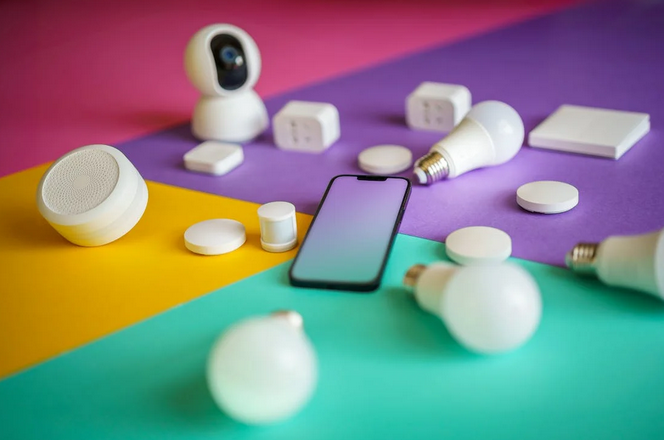
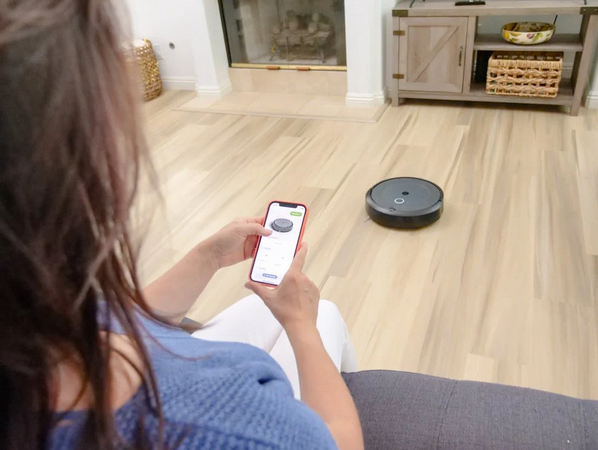
Technology has quickly woven itself into the fabric of daily living, offering tools to transform how people handle tasks—from brewing coffee in the morning to adjusting lights at night. Automating your lifestyle using smart devices and apps doesn’t just save time; it reduces stress and adds convenience without demanding constant attention. Here’s a closer look at how you can integrate smart tech to make your routine run smoother.

Start with Smart Home Hubs

To kick off automation, a smart home hub acts as your control center. Devices like Amazon Echo, Google Nest Hub, or Apple HomePod connect various gadgets into a central command point. Instead of toggling individual apps, a single voice command or scheduled routine can adjust lighting, play music, lock doors, or manage appliances.

When selecting a hub, compatibility is key. Some work better with specific ecosystems—Apple products with HomeKit, for instance. Be mindful of what other devices you already use or plan to integrate.

Automate the Morning Routine

Imagine your lights slowly brightening at 6:30 a.m., the thermostat warming the house, and your coffee brewing—all without lifting a finger. Smart plugs, thermostats like Ecobee or Nest, and programmable coffee machines let this happen.

Use apps like IFTTT (If This Then That) to string together simple logic rules: If it’s 6:30 a.m., then turn on bedroom lights and start the coffee maker. It takes minimal setup and makes mornings less chaotic.

Boost Productivity with Smart Apps

Smartphone automation apps can manage more than just physical devices. Apps such as Tasker (for Android) and Shortcuts (for iOS) allow custom automations on your phone. Set your device to go on silent mode during work hours or automatically send a message when you leave a specific location.

Calendar integration is another powerful option. Sync your schedule with tools like Google Calendar to receive reminders, block distractions, or turn on “Do Not Disturb” mode during meetings.

Save Energy with Intelligent Systems

Energy efficiency and automation go hand in hand. Smart thermostats learn your habits and adjust temperatures accordingly. Motion sensors can control lights, so they turn off when rooms are unoccupied. Smart power strips can shut off standby power to devices not in use.

Apps such as Sense or EnergyHub monitor usage patterns and provide insights into how to reduce waste. These systems not only promote sustainability—they also help lower your utility bills over time.

Secure Your Home Automatically

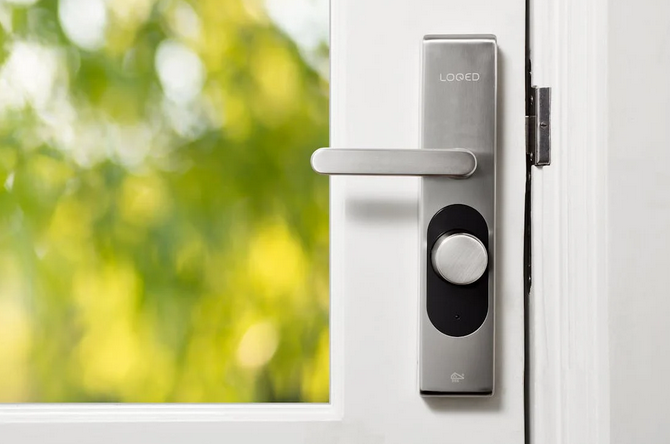
Smart locks, security cameras, and doorbells (like Ring or Arlo) give you control over your home’s safety from anywhere. You can receive notifications if motion is detected, or even set routines to mimic your presence when you’re away by turning lights on and off at random intervals.

Automated security helps protect without needing constant monitoring. Some systems can even trigger alerts based on unusual behavior, adding an extra layer of peace of mind.

Make Errands Easier

Automation doesn’t stop at home. Services like Amazon Subscribe & Save or grocery delivery apps can manage recurring orders. Set schedules for household supplies to arrive regularly, reducing the need to remember every small item. Apps like Todoist and Notion can help categorize tasks, set reminders, and sync across devices, so you never miss a beat—even on busy days.

Integrating smart devices and apps into daily life offers more than simple novelty. It reshapes how time is spent, making space for what truly matters. With thoughtful setup, you can shift from manually managing every detail to having your environment work in harmony with your goals. Whether simplifying mornings, improving home security, or boosting productivity, automation is a valuable ally in modern living.…

nikon

How to Get SnapBridge on PC

If you’re a photography enthusiast and love your Nikon cameras, chances are you’ve heard of SnapBridge. This innovative app connects your Nikon camera to your smartphone or tablet, making managing and sharing your photos easier than ever. But what if you want to use SnapBridge on your PC? That’s where NoxPlayer comes into play.

With this Android emulator, you can unlock the full potential of SnapBridge right from your computer. In this guide, we’ll explore everything you need to know about getting snapbridge for pc—its features, how it works for you, common issues with solutions, and step-by-step instructions for downloading it via NoxPlayer.

How Does SnapBridge Work for You?

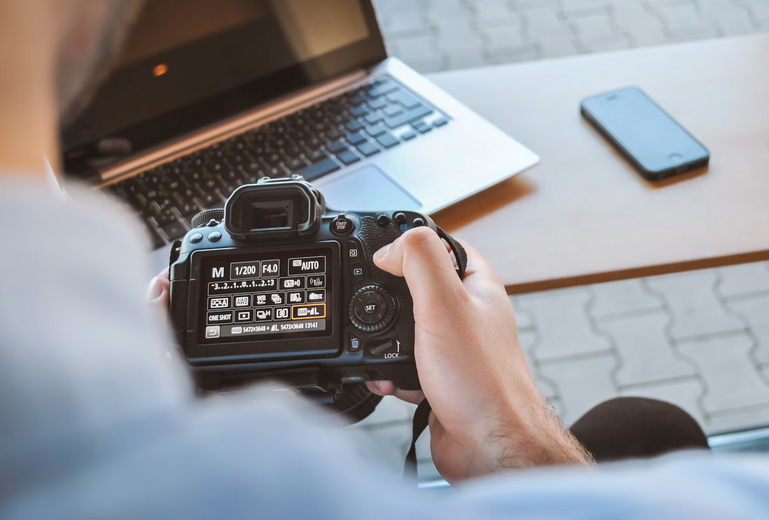
SnapBridge revolutionizes the way you interact with your Nikon camera. By establishing a seamless connection between your device and smartphone, it allows for effortless photo transfer right after capturing. Once linked via Bluetooth or Wi-Fi, SnapBridge automatically sends images to your mobile device.

This means no more waiting until you’re home to share your masterpiece shots on social media. The app also acts as a remote control for shooting photos. Need that perfect angle? Simply adjust settings from your phone while keeping an eye on the frame through its live view feature.

Special Features SnapBridge Has to Offer

features

SnapBridge offers a suite of impressive features that enhance your photography experience. One standout is automatic photo transfer, as mentioned. But there is more. Remote shooting is another gem in SnapBridge’s toolkit. You can control your camera from afar using your smartphone or tablet, making it easy to capture group shots or self-portraits without needing someone behind the lens.

GPS tagging ensures that every photo carries its location data. This feature adds context to memories and helps organize images by where they were taken. The ability to sync camera settings directly with your device streamlines the entire process of capturing images. Adjusting settings on-the-go has never been easier, making photographers easily focus more on creativity rather than technicalities.

Common Issues and How to Fix Them

While SnapBridge offers a seamless experience, users may encounter some common issues. One frequent problem is the connectivity between the camera and the smartphone. This can often be resolved by ensuring both devices are paired correctly through Bluetooth. Another issue is slow photo transfers. If you’re facing this, check your Wi-Fi connection or transfer smaller batches of images instead of large groups to speed things up.

Camera settings not syncing? Check if you’re using the latest version of the app installed on your PC through NoxPlayer. Sometimes, simply restarting both devices helps restore functionality. With these quick fixes, you can effortlessly enhance your SnapBridge experience!

cam

How to Download SnapBridge on PC Using NoxPlayer

To download SnapBridge on your PC using NoxPlayer, first, you need to install the emulator. Visit the official NoxPlayer website and download the software suitable for your operating system.

Once installed, launch NoxPlayer and complete any initial setup prompts. You’ll then find yourself in a user-friendly Android interface. Next, head to the Google Play Store within NoxPlayer. Sign in with your Google if prompted. Use the search bar to type “SnapBridge.” When you locate the app, click “Install.” The process should only take a few moments. After installation is complete, you can open SnapBridge directly from NoxPlayer’s home screen.

SnapBridge is an innovative tool that brings convenience and efficiency to your photography experience. With its unique features like automatic photo transfer, remote shooting capabilities, GPS tagging, and camera setting synchronization, it enhances the way you capture moments.

While some users may face challenges when using SnapBridge on their PCs, most issues can be easily resolved with a few troubleshooting steps. With all these benefits in mind, embracing SnapBridge could elevate how you connect with your Nikon camera and manage your photography projects more effectively. Give it a try.…

How to Install EZMira on PC

Are you tired of always squinting at your tiny smartphone screen while trying to watch your favorite videos or browse through photos? Or maybe you’re looking for a way to share your phone’s content on a way bigger display? Look no further because we’ve got the perfect solution for you.

The EZMira app is here to revolutionize the way you connect and cast your smartphone onto other devices. Okay, but before delving into this app, you need to know that it isn’t for PC users. So you’ve got to download an Android emulator to run it on your PC. We’ll explain it further here.

Getting Started Guide

First things first, make sure your device is compatible with the app. EZMira works seamlessly across various platforms and devices, including Android smartphones, iPhones, tablets, Windows PCs, and Macs. So, no matter what device you have at hand, chances are you’ll be able to use EZMira without any issues. To begin casting content from your phone onto a larger screen or monitor, ensure that both devices are graced with your Wi-Fi network. This will establish a stable connection and allow for smooth streaming of videos and other media files.

Now, let’s explore all that EZMira has to offer. From mirroring photos and videos to playing games on a bigger display, this versatile app lets you enjoy your favorite content in a whole new way. And don’t forget about its compatibility with popular streaming services like Netflix and YouTube – now you can binge-watch your favorite shows on a grander scale.

Compatibility and Devices

The EZMira app provides a seamless experience across multiple devices and operating systems, ensuring that you can always enjoy your media on any compatible screen. EZMira is compatible with both Android and iOS devices, making it super accessible to a large number of users. Whether you have an iPhone or an Android phone, you can easily connect and cast using the EZMira app.

In addition to smartphones and tablets, Ezmira for Windows also supports casting from laptops and PCs. This means that you can stream videos or share presentations directly from your computer onto a bigger display without any hassle. Furthermore, EZMira works smoothly with various streaming devices such as Chromecast, Miracast-enabled TVs, and DLNA receivers. So, no matter what type of device or platform you are using, rest assured that EZMira has got you covered.

Casting Tips and Tricks

When it comes to casting with the EZMira app, there are a few tips and tricks that can help enhance your experience. First off, be sure to have a strong Wi-Fi network. Then, see if you have updated firmware on both devices. Regularly check for any available updates, as they often include performance improvements and bug fixes.

If you encounter any buffering or lagging issues while casting, try reducing the quality of the video or audio being streamed. Sometimes, high-quality content requires more bandwidth than your network can handle smoothly.

How to Install EZMira on PC

To install EZMira using MemuPlay, first download and install the emulator from their official website. Once installed, open MemuPlay and sign in with your Google account. Next, go to the Play Store within the emulator and search for “EZMira.” Click the app and the “Install” button to begin downloading it onto your virtual Android device. Once EZMira is installed, launch it from your app drawer within MemuPlay. You can now start casting media from your phone or tablet directly onto your PC!

Using EZMira with MemuPlay gives you greater flexibility in enjoying content on a bigger screen while retaining all the features of the original app. Give it a try today and take full advantage of this powerful combination.…